Contractor Web App
Contractors can also log in and manage their shifts/view their files from the browser.
Dashboard
After first logging in, contractors can see a calendar with jobs belonging to businesses that they are assigned to as well as a global message board.
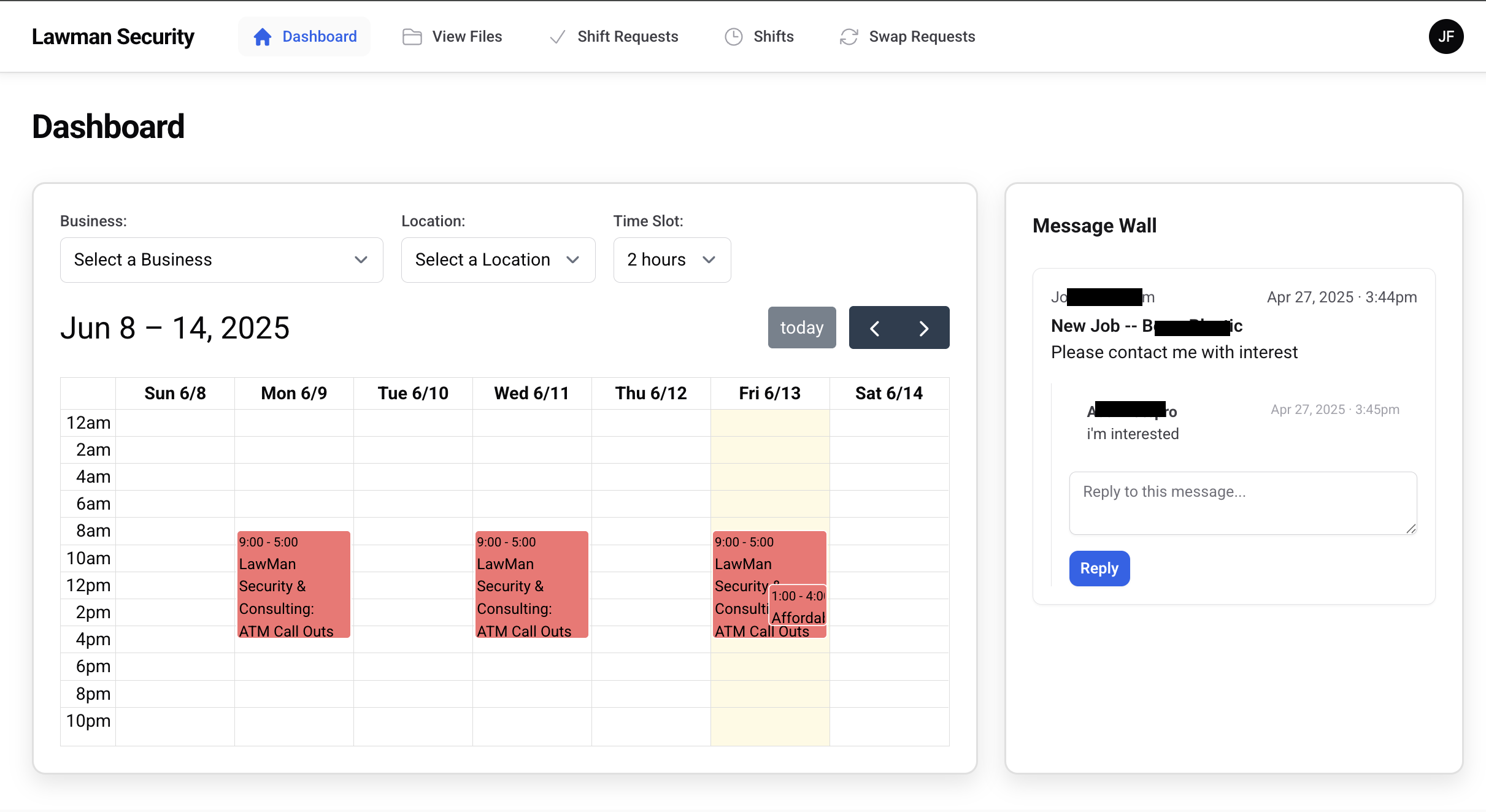
Red jobs are ones that have open slots and need coverage. To apply, the contract needs to click the job and click "create shift request". Jobs with no open slots are in green.
Shift Requests
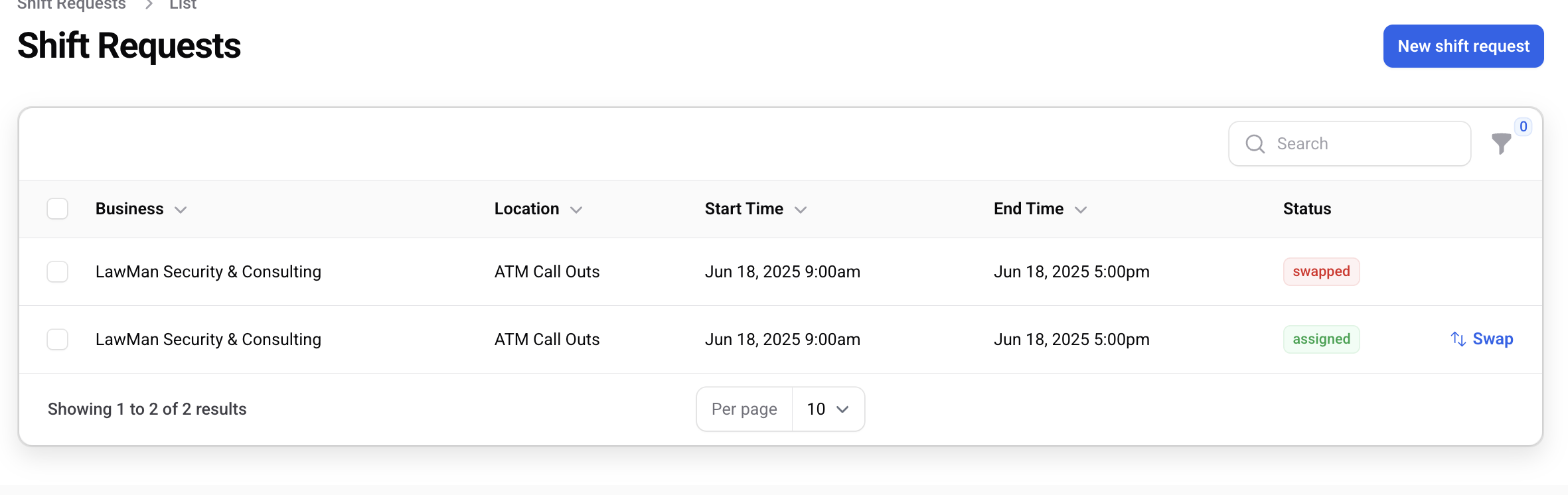
Contractors can see all of their requests and the status associated with them. On shifts that are assigned, they can request to swap by clicking the button to the right.
Shifts
Contractors can view all upcoming shifts that they are associated with. They can also filter by upcoming/past and business/location.
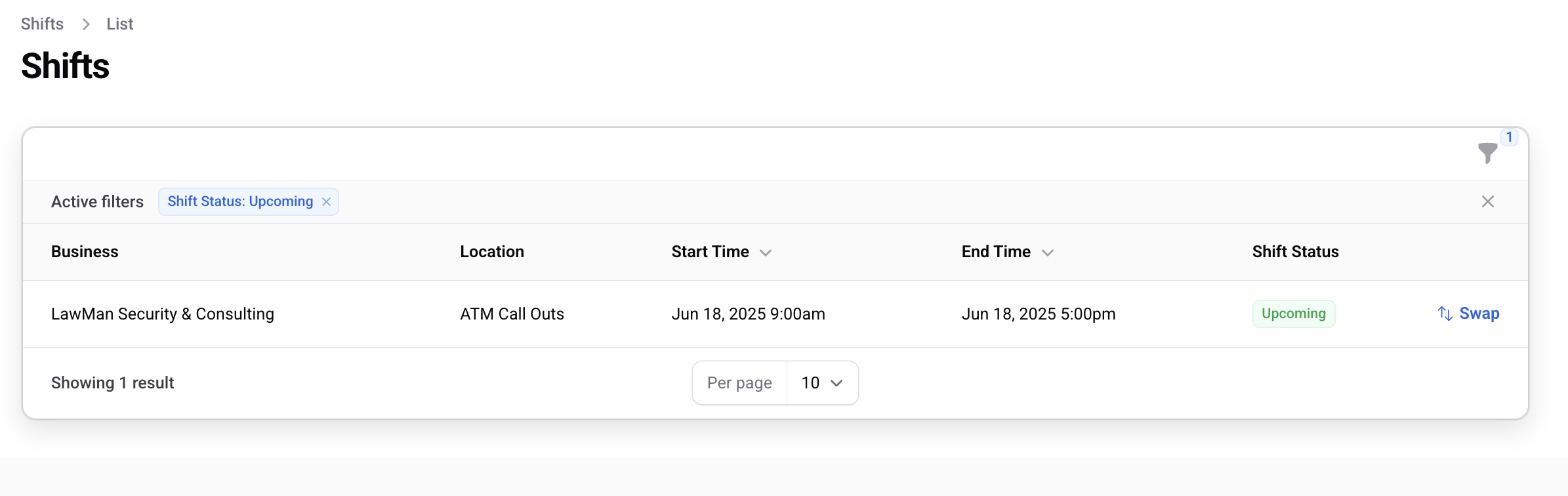
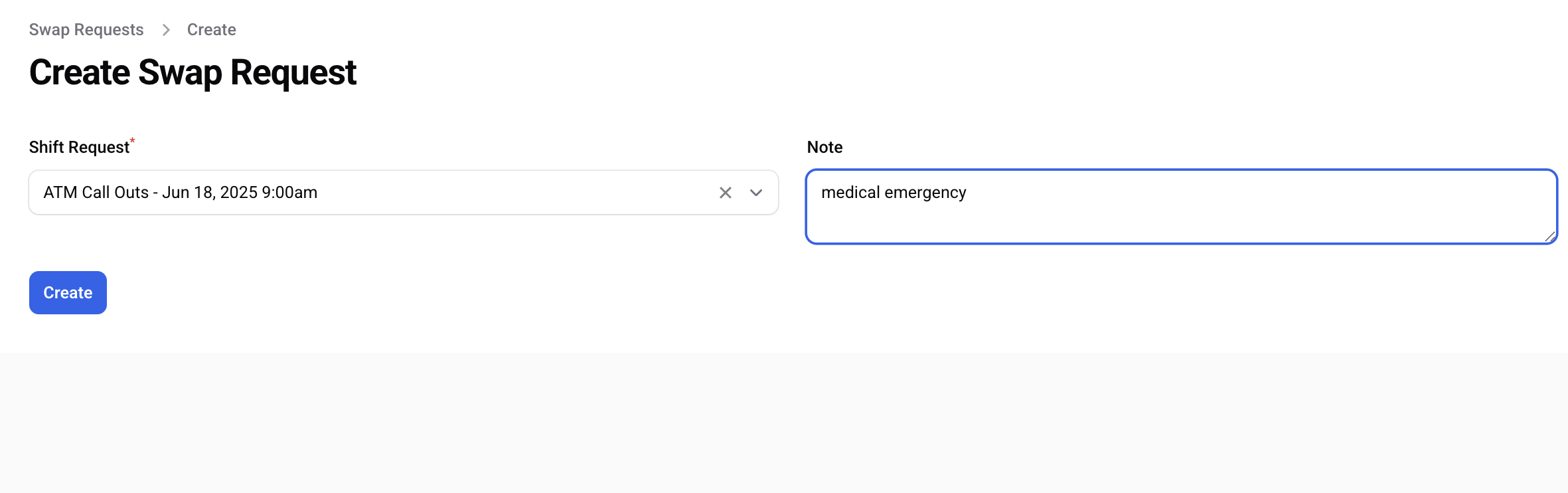
If a shift is upcoming, they can click to swap it. After doing that they'll be presented with a form asking for a note.
Swap Requests
Contractors can see swap requests that are pending and associated with businesses that the contractor is associated with and/or swap requests that involve the contractor.
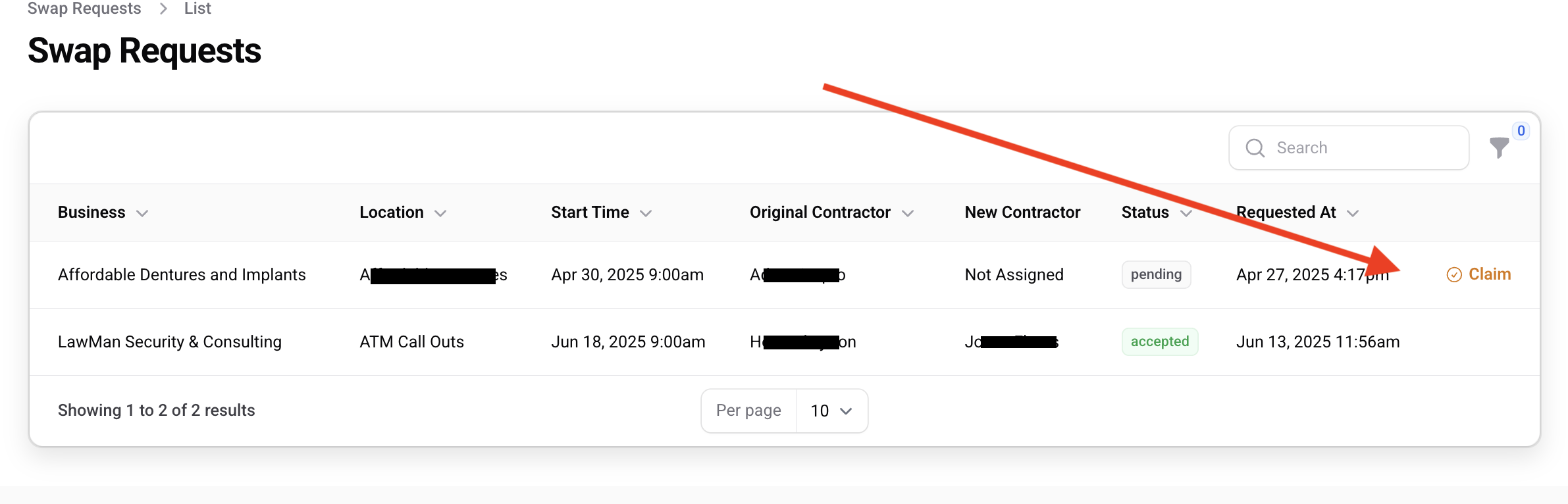
Contractors can claim the swap request by clicking the 'claim' button on the right. After clicking the claim button they will receive a confirmation.
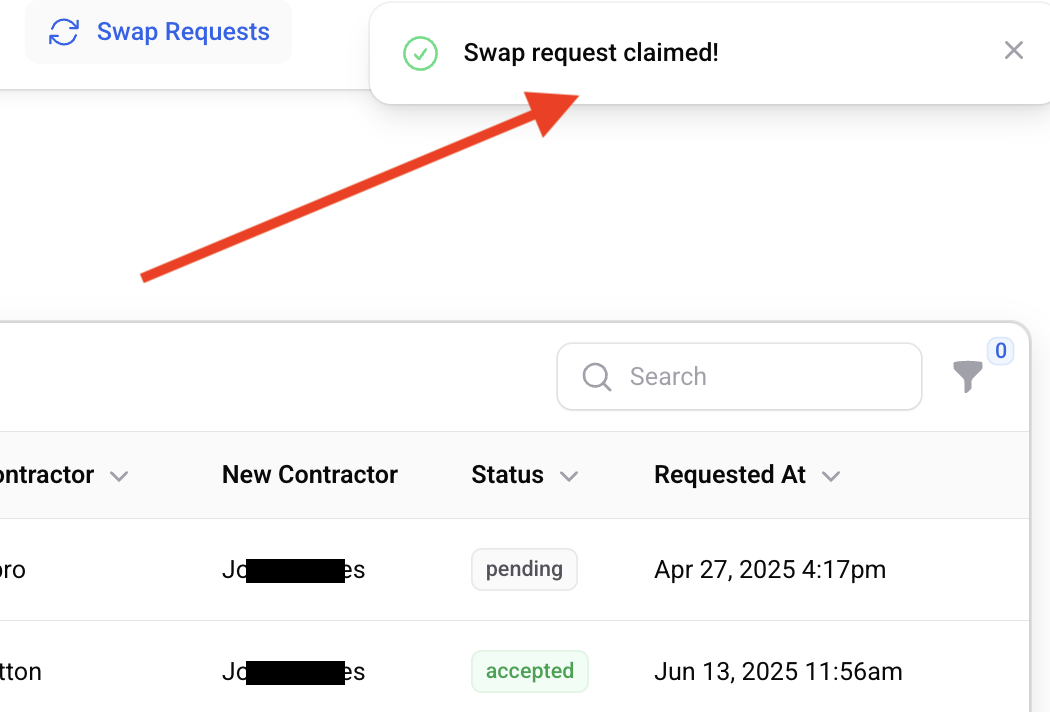
An admin will still have to approve the swap.
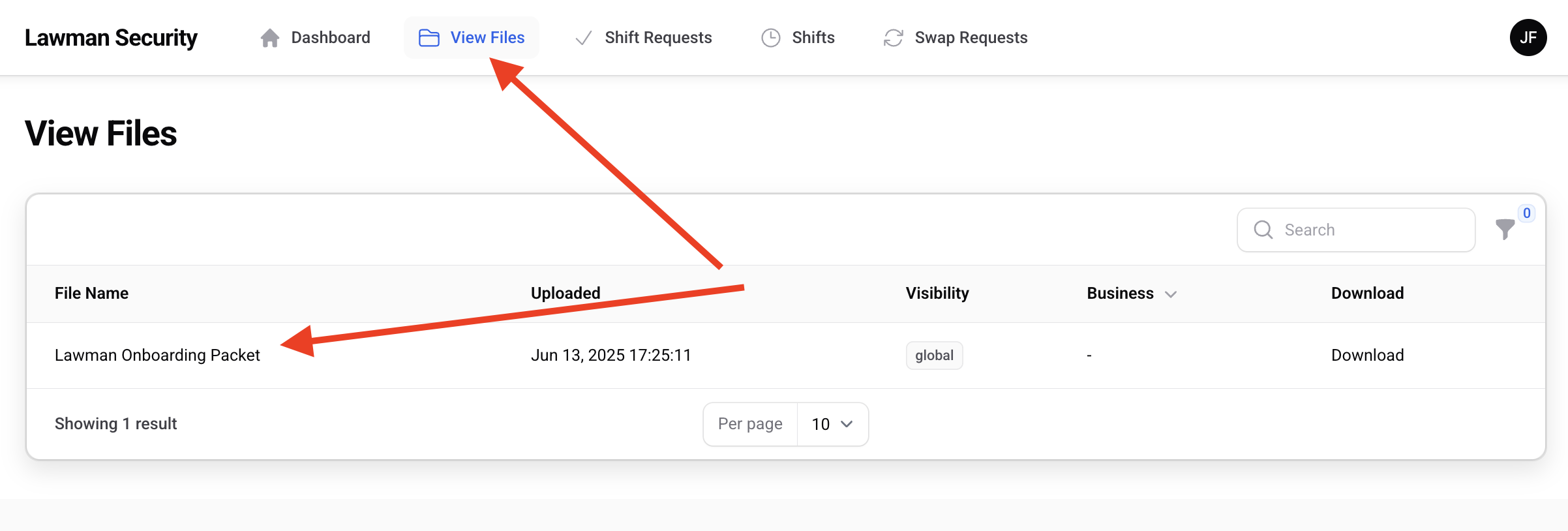
Files
Contractors can view files that have been marked as global or that have been assigned to businesses that the contractor is also assigned to.