Contractor Mobile App
After logging in, the contractor can see a list of upcoming shifts, wall messages, and available shifts. Available shifts only shows shifts that belong to a business they've been associated with.
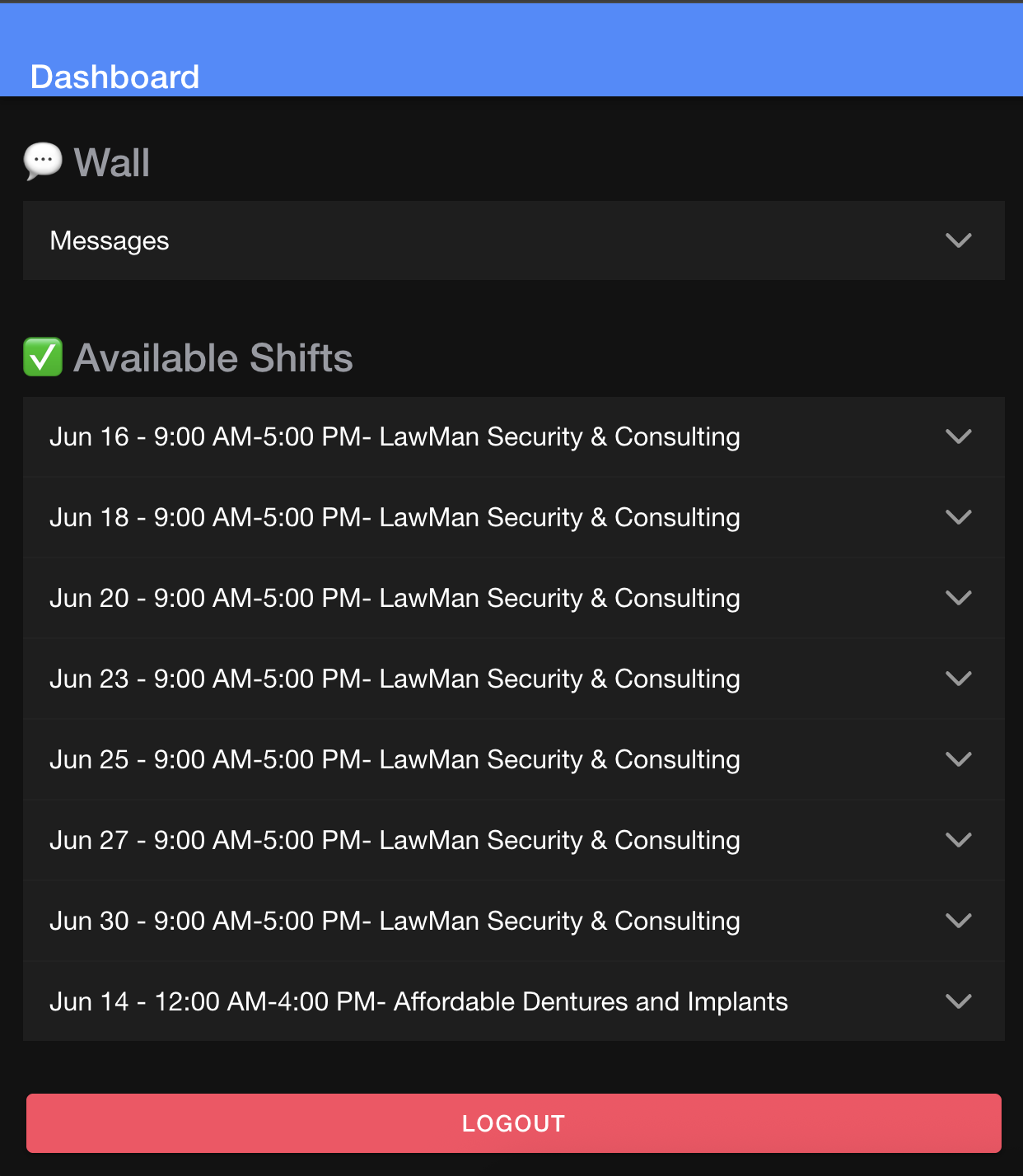
Request a Shift
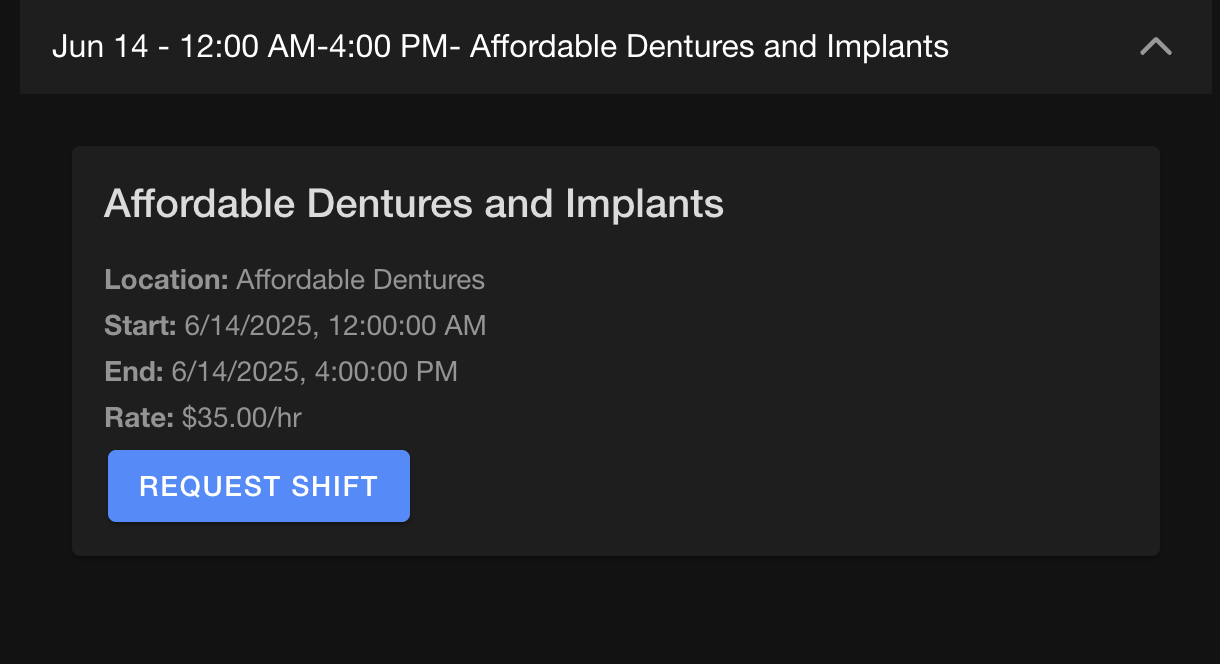
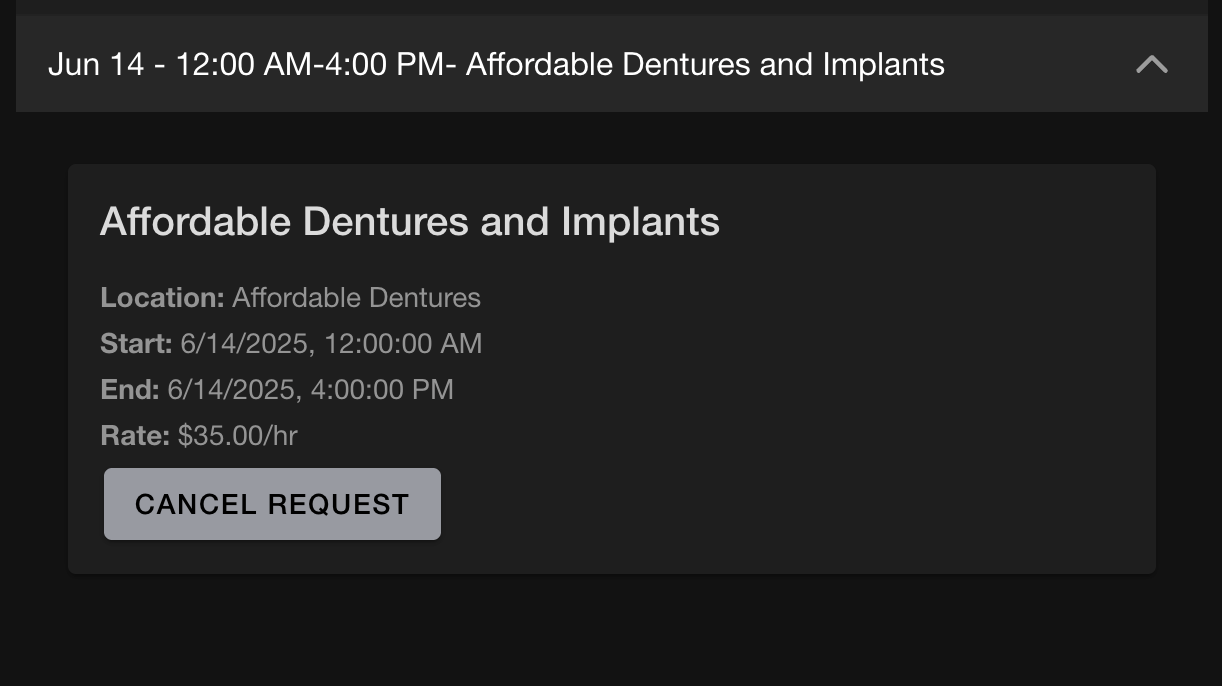
Contractors can request open shifts by clicking the 'Request Shift' button. Before it has been assigned, they can also cancel their request. After the request has been assigned they'll have to go through the shift swap process to be unassigned.
Upcoming Shifts/Clocking In
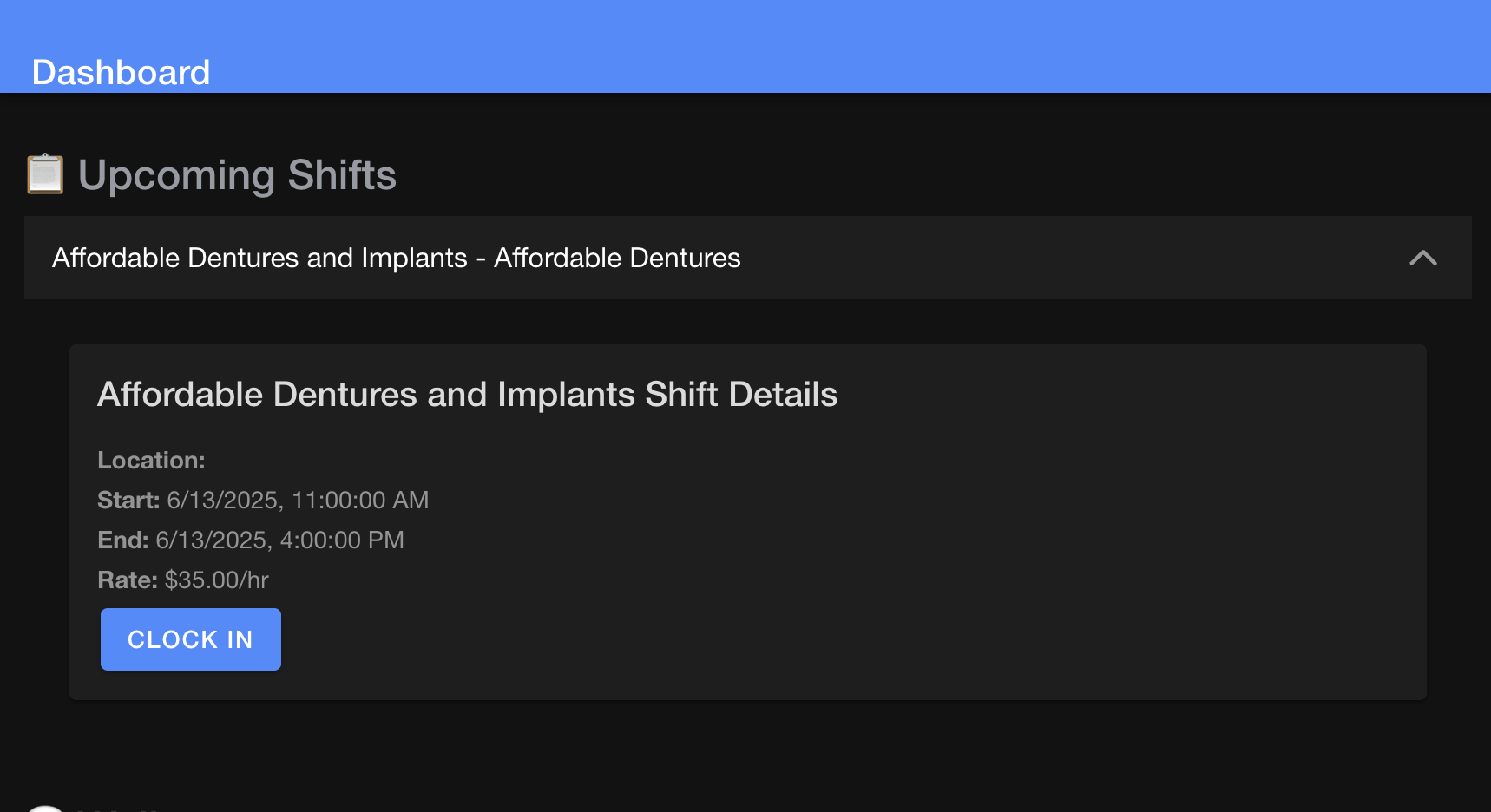
After assignment, assigned shifts show up in the 'Upcoming Shifts' section
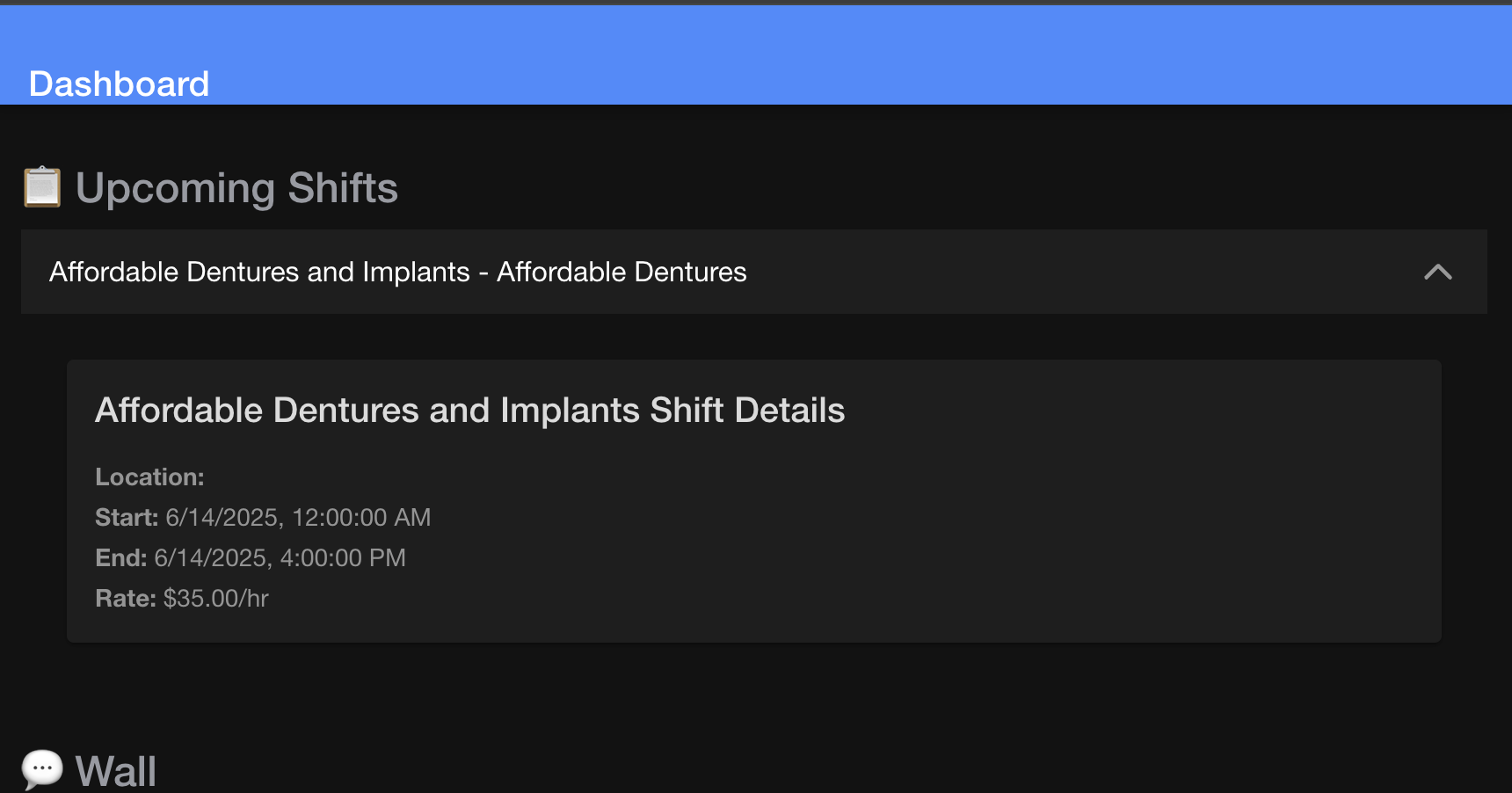
If an address is provided, a link to the google maps is presented.
The "Clock In" button only shows up the day of the event. Contractors can not clock in for events that happened 1 day prior or 1 day in the future.
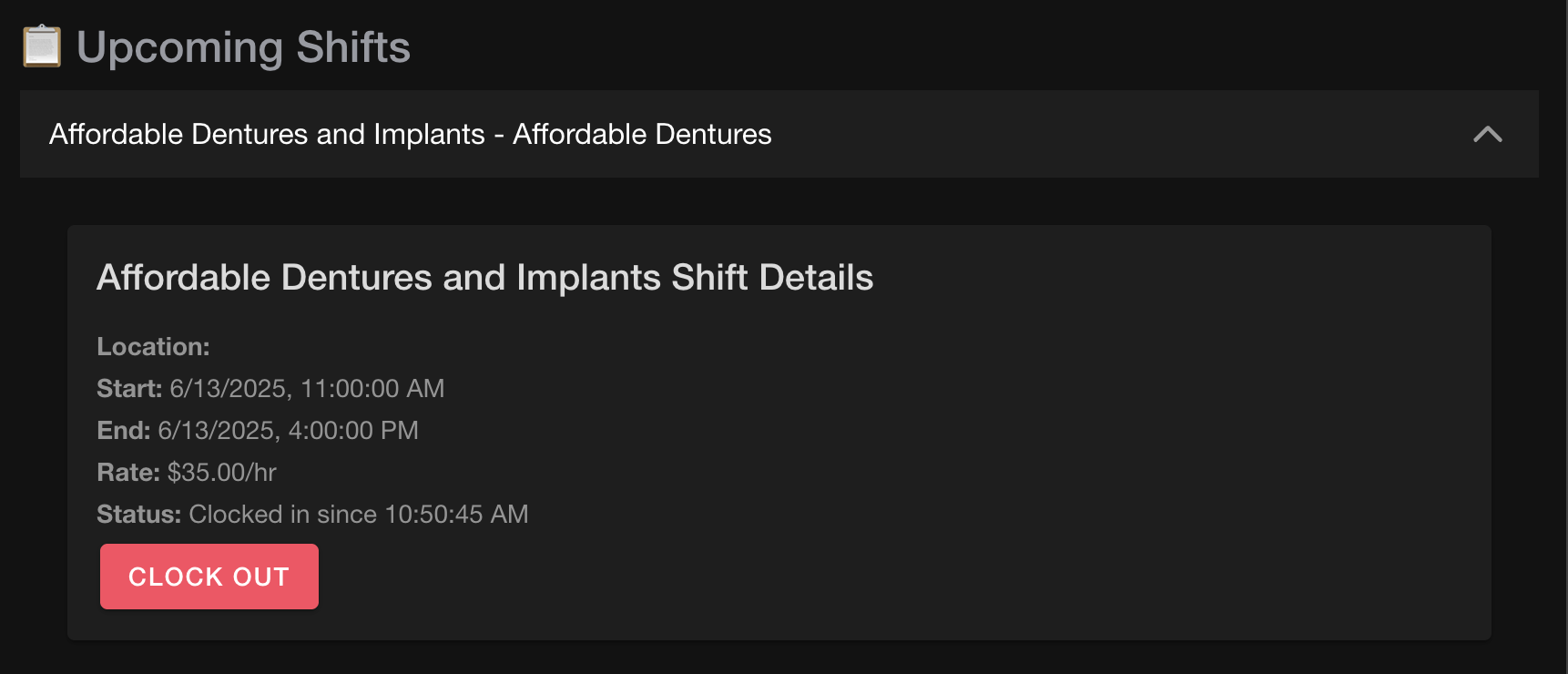
After clocking in, they they are presented with details about when they clocked in and are also given the option to clock out.
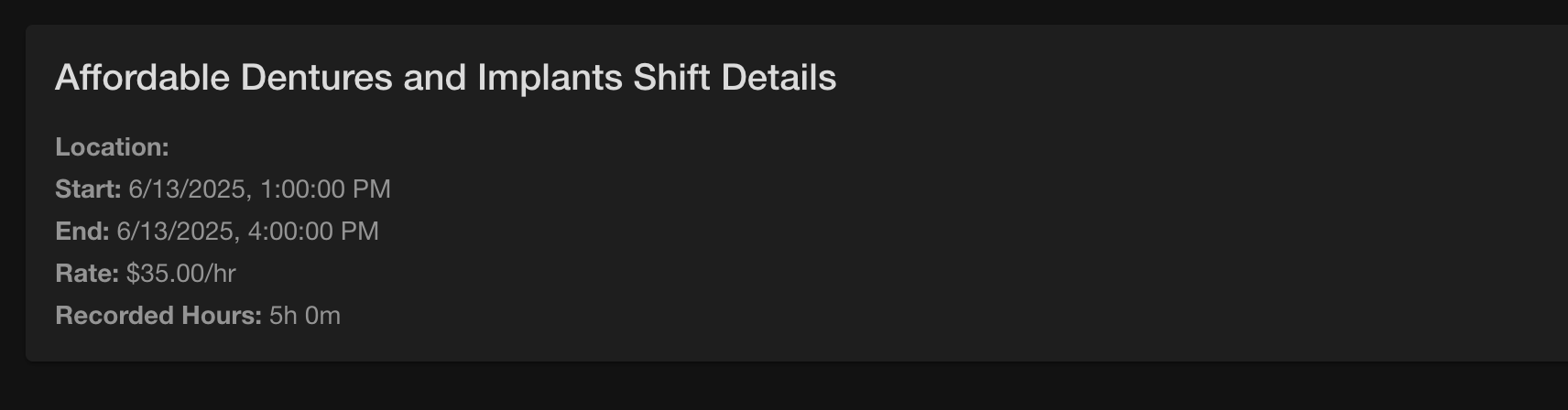
After clocking out, the total hours will be shown.
Swap Request
Requesting a swap
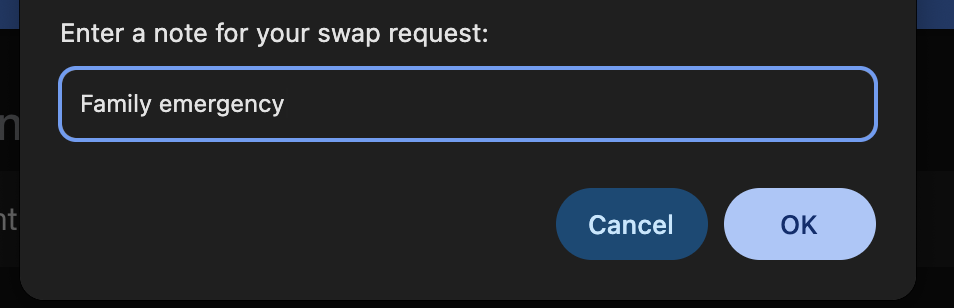
Contractors can request swaps from the app as well. To request a shift swap, they can click the "REQUEST SWAP" button. After that they will be asked for a note to attach to the swap request.
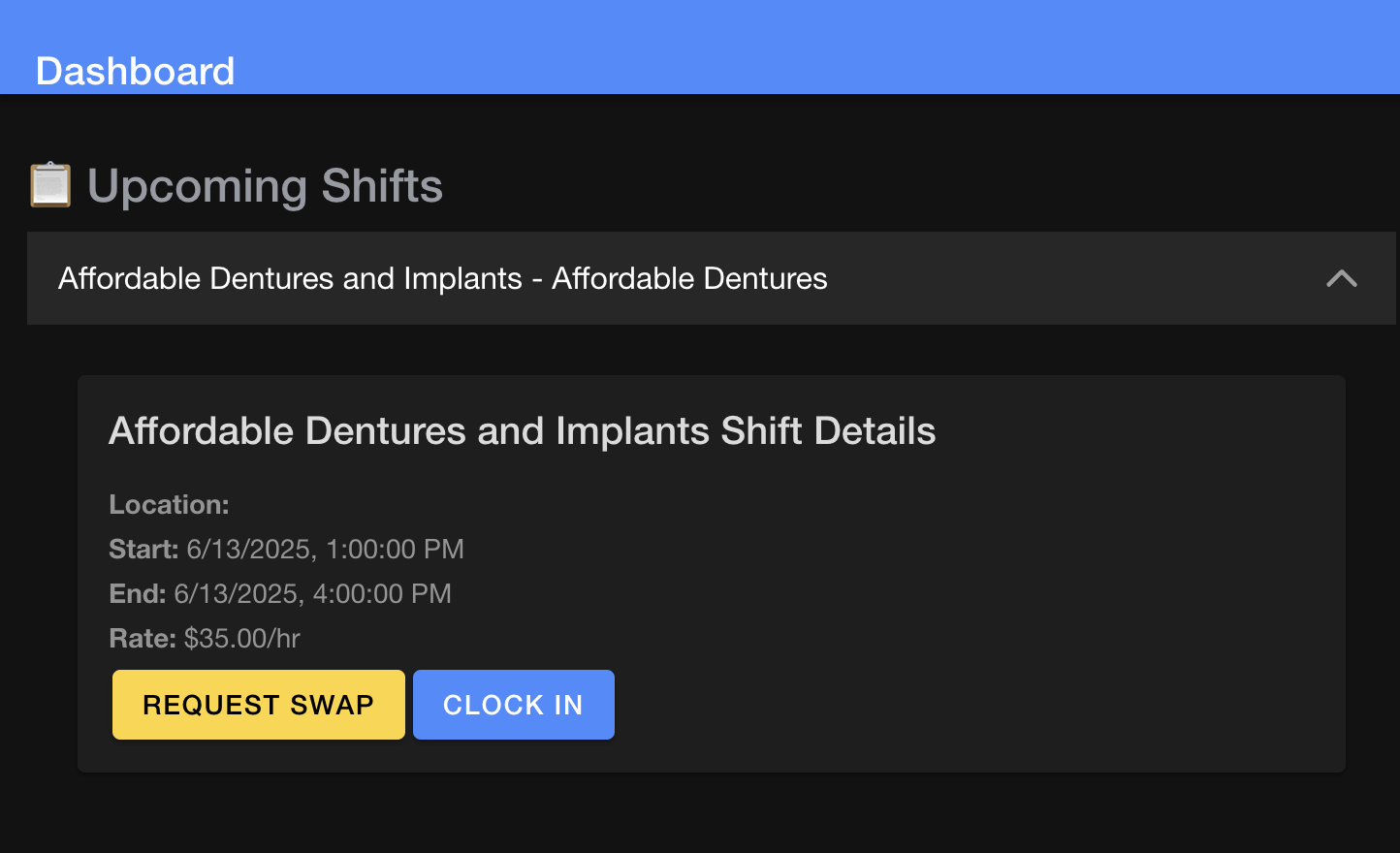
After making the swap request, it will show that the there is a swap request pending.
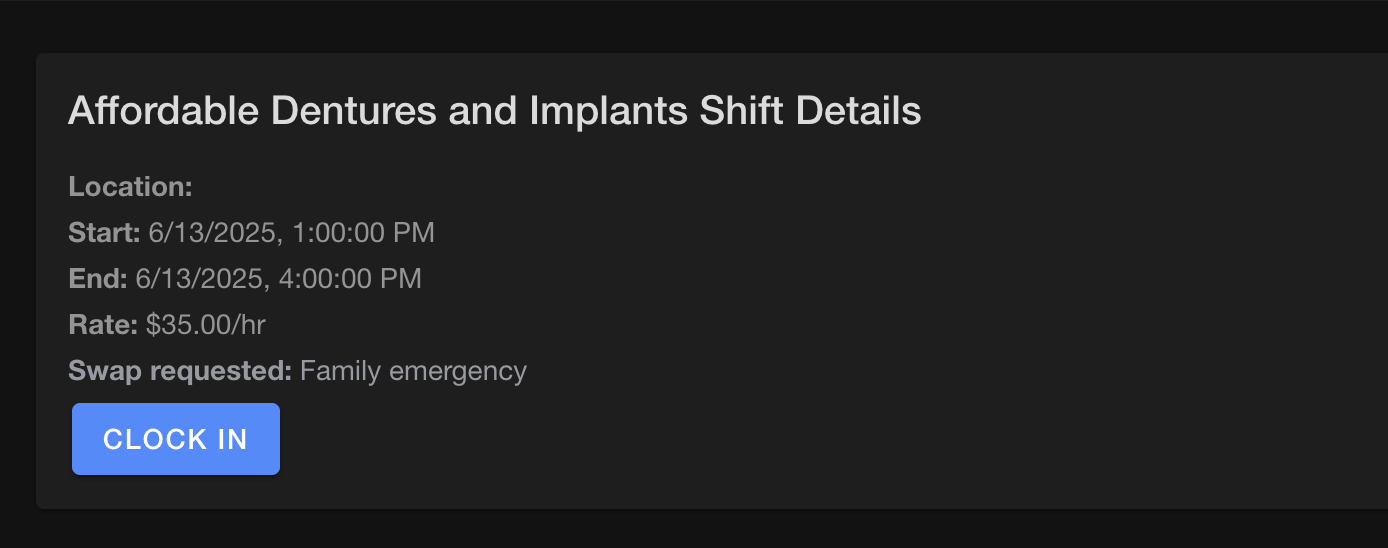
When and if the swap request is approved, the contractor will get a notification and the shift will no longer show up in their list.
Requesting to fill a swap
Swap requests show up in the available shifts section with a yellow badge.

Contractors can click to "Request To Fill Swap Request" to put themselves in as a candidate for the swap request. An admin will still have to approve the swap request.
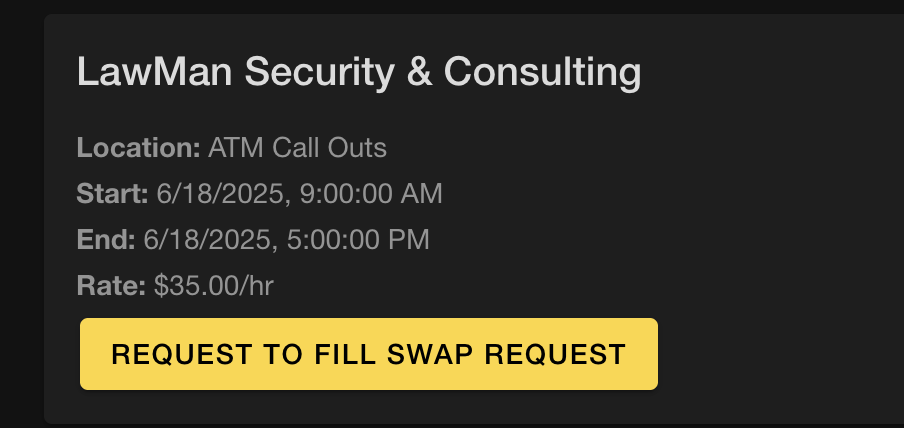
When/if the request is approved, the contractor will get a notification and it will show up in their pending shifts.